
Auto-programs let you schedule automatic lock operations for specific times and days. Use them to set the lock to stay engaged during business hours or to temporarily block guest cards.
Auto-programs are configured from the tab "Other" (for multi-user subscriptions the user must have “Auto-programs” permission).
Automatic programs require updated devices.
These are the devices and their firmware requirements:
If in doubt, consult an authorized technician to verify whether these requirements are met or whether an update is necessary.
If an update is necessary, CISA recommends performing a security upgrade and switching to DESFire cards (always consult your technician).
Maximum auto-program operations per lock: 60.
Supported operation types:
(*) Operation End-time: by design, the lock stops an auto-program operation 15 minutes after the programmed End-time.
Overwrite behavior: when an auto-programs service card is presented to a lock, the lock is set exactly with the auto-program operations contained in that card: any auto-program operations previously stored in the lock are overwritten by the new set.
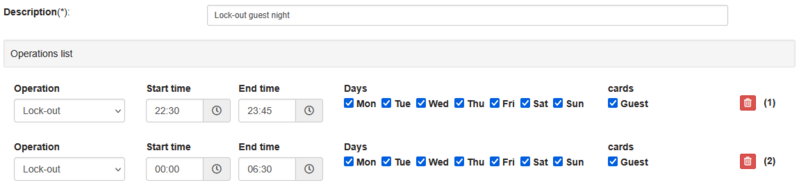
If an operation must span midnight, create two operations: one that runs from the Start time until 23:45 and a second that runs from 00:00 to the End time.
In tab "Other", click "Auto-programs" button.
If your account uses role-based permissions with multi-user subscription, an administrator must grant the Auto-programs permission to access this button.
You will see the list of the auto-programs configured for your locks.
An auto-program is a set of automatic operations (max 60) which can be written in a Service card and then set in a lock.
An item "Remove all auto-programs” is always present: with this you can remove any auto-program configuration from the lock.

Buttons / actions available:
From tab "Other", click on "Auto-programs" and then on "Add a new auto-program (+)".
Add one or more auto-program operations using the "Add operation (+)" button.
PLEASE NOTE:
For automatic OFFICE-ON operation, the lock must be configured with the Office function enabled.
For the automatic LOCK-OUT operation, the minimum required version is AERO X, as it applies to guest cards.
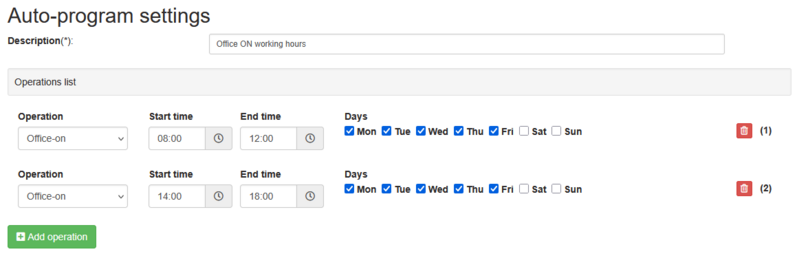
For each operation configure:
Add auto-program operations as needed (an auto-program collection can include up to 60 operations).
Click "Confirm" to apply changes.
Example of auto-program with operations spanning midnight.
If you want to clear all auto-programs from a lock, click the card button in the line “Remove all auto-programs” to write an empty auto-program service card.
Presenting this service card to a lock, it overwrites and clears whatever auto-programs the lock had.
Program not running at expected time
The Office-on operation does not activate at the scheduled time.