Private Rooms
Overview
- The Private Rooms feature is available only if your plant has the Multi-user subscription.
- This feature allows plant administrators to prevent unauthorized standard users (e.g., receptionists, general staff) from creating or managing access credentials for sensitive or restricted rooms flagged as "Private". This ensures that only authorized personnel can issue keys to these rooms, enhancing security for sensitive areas within the hotel.
- Private Rooms are intended for utilities, not for guest rooms.
Marking a room as "Private"
- Log in as an Administrator or with a user with required permissions (edit door + private rooms).
- Navigate to the Doors tab.
- Find the door you want to set as "Private", click on it, and then on Edit button (in case it is a new door, add a new door).
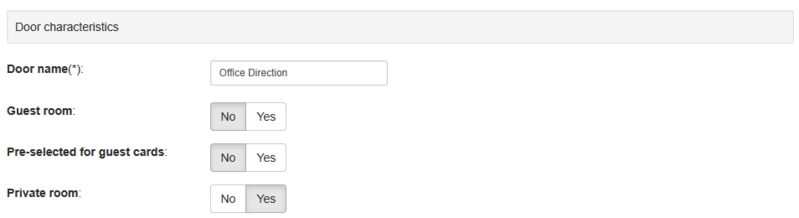
- Ensure the Guest room box is unchecked for this room.
- Ensure that Pre-selected for Guest cards is unchecked for this room.
- Check the Private room box to mark the room as Private (available only if your plant has the Multi-user subscription).
- Complete editing and save your changes.
This Private room flag marks a lock as Private in the database. It does not affect initialization cards, therefore it is not required to reset and re-initialize an existing lock for this change to apply.
For existing and new rooms, the Private Room flag defaults to NO.
User permissions for Private Rooms
- Go to tab Other.
- Click the button Login management.
- Find the user you want to set permissions, and click on its username.
- Find the checkbox labeled Card programming for private rooms.
- Assign this permission only to trusted users.
Administrators have all permissions, so they also have Card programming for private rooms permission.
What happens when a room has the Private Room flag
Only administrators or users with the Card programming for private rooms permission can create or modify credentials opening a Private Rooms.
Private Rooms are hidden or disabled in all relevant interfaces for users without Card programming for private rooms permission:
- Home tab: Tiles for Private Rooms are hidden to prevent fast check-in on those rooms.
- Doors tab: Private Rooms are hidden from the door list; users cannot access door info or perform functions like init, edit, or program on Private Rooms.
- Card and Mobile Programming Wizards: Private Rooms do not appear as selectable doors when programming credentials.
- Card and Mobile Copy Wizards: If a credential includes Private Rooms, users without permission cannot create a copy and will see the error: “You are not allowed to create a copy of this key, because it operates private rooms.”